Tutorial · Published 2026-01-12
How to Remove Background in Photoshop: A Step-by-Step Guide
A complete 2026 walkthrough for removing backgrounds in Photoshop using the Object Selection Tool, Select Subject, and the Pen Tool — plus a one-click online alternative.
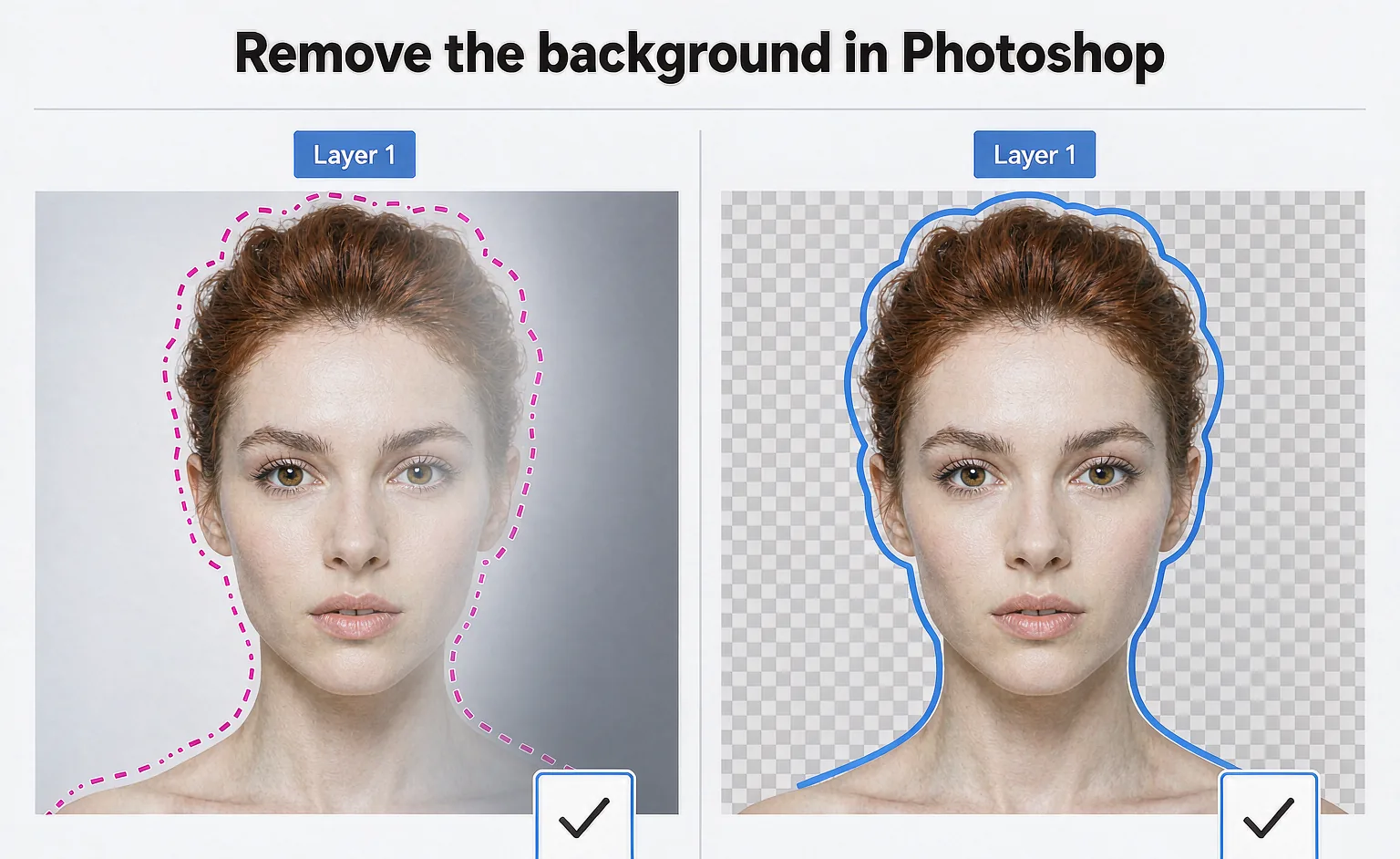
Quick steps
- 1Open your image and unlock the layer — Open the photo in Photoshop and click the lock icon on the Background layer to convert it into a normal layer.
- 2Choose a selection method — Pick the Object Selection Tool, Select Subject, or the Pen Tool depending on how complex your edges are.
- 3Refine the edge — Use Select and Mask to smooth, feather, and clean up hair and soft edges.
- 4Mask or delete the background — Click Mask to hide the background non-destructively, or press Delete to remove it.
- 5Export as transparent PNG — Save the file as PNG to keep the transparent background for use anywhere.
Removing a background in Photoshop is one of the most useful skills for product photography, portraits, and design work. Whether you're prepping an e-commerce listing or compositing a subject into a new scene, Photoshop gives you several ways to isolate your subject. This guide walks through the three methods most people actually use in 2026 — the Object Selection Tool, Select Subject, and the Pen Tool — plus when to reach for each.
When should you remove a background in Photoshop?
You'll want a clean cutout whenever the background distracts from the subject. Common cases include marketplace product photos (Amazon, Etsy, eBay all prefer plain backgrounds), team and ID portraits, logo and mockup compositing, and social graphics where you need the subject to sit on a branded color. If the final destination is a solid color or transparent layer, Photoshop is a reliable choice.
Method 1: Object Selection Tool (fastest for most photos)
The Object Selection Tool is the best starting point for clearly separated subjects. It uses Adobe's AI to find edges automatically.
- Open your image and unlock the Background layer by clicking its lock icon.
- Select the Object Selection Tool (nested under the Quick Selection Tool, shortcut
W). - Make sure Object Finder is enabled, then hover over your subject — Photoshop highlights it. Click to select.
- For tricky areas, drag a loose rectangle around the subject to force a new selection.
- Open Select and Mask (button in the top toolbar) to clean up edges, increase Smooth slightly, and set Output To: Layer Mask.
Method 2: Select Subject (one click for people and products)
When your subject is a person, animal, or a well-defined product, Select Subject is often a single click.
- Go to Select › Subject from the top menu.
- Photoshop analyzes the image and selects the dominant subject automatically.
- Open Select and Mask to refine hair and transparent edges.
- Click Mask to hide the background non-destructively.
This method shines for portraits because Adobe's model is trained to find people. For busy backgrounds it may need a little manual cleanup with the Brush in Select and Mask.
Method 3: Pen Tool (best for hard, complex edges)
The Pen Tool takes longer but gives pixel-perfect control — ideal for products with sharp corners, glass, or furniture.
- Select the Pen Tool (shortcut
P) and set it to Path. - Click to place anchor points around the subject, dragging handles on curves.
- Close the path, then Right-click › Make Selection with a small feather (0.5–1px).
- Invert if needed (Select › Inverse) and delete or mask the background.
The Pen Tool is slower, but for e-commerce where edge quality drives conversion, it's worth the effort.
Tips for cleaner results
- Shoot on a contrasting background so the edge is easy to detect.
- Use Select and Mask › Decontaminate Colors to remove color fringes.
- Always output to a Layer Mask instead of deleting, so you can fix mistakes later.
- Export as PNG to preserve transparency; use JPG only if you need a solid backdrop.
Common mistakes to avoid
Avoid over-feathering, which makes subjects look haloed. Don't skip edge refinement on hair — it's the detail people notice first. And never flatten your image before exporting if you might need to re-edit the cutout.
Don't want to learn Photoshop? Try our online background remover — one click, no installation.
Get started