How-to guide
Product Photo Background Ideas: Remove, Replace & Generate
A product photo background is the surface behind your product in a listing image, and handling it comes down to three moves: remove a messy background to a compliant pure-white main image, place the cutout on a material like stone or wood for gallery shots, or generate a full lifestyle scene around the isolated product. This guide walks through each method step by step — the before-and-after shots below show a real cluttered-desk photo turned into a marketplace-ready image.
Published · Updated
Marketplace image pack
Primary + 4 lifestyle assets
Try it free
Remove the background from your product photo
Upload one photo and get a white-background main image in seconds. No account required — the preview is watermarked, sign in to download the clean version.
Marketplace
Drop your product photo
or
JPEG, PNG, or WebP · up to 12 MB
Your white-background result appears here after you upload a photo.
Before and after
One photo in — a handled product photo background out
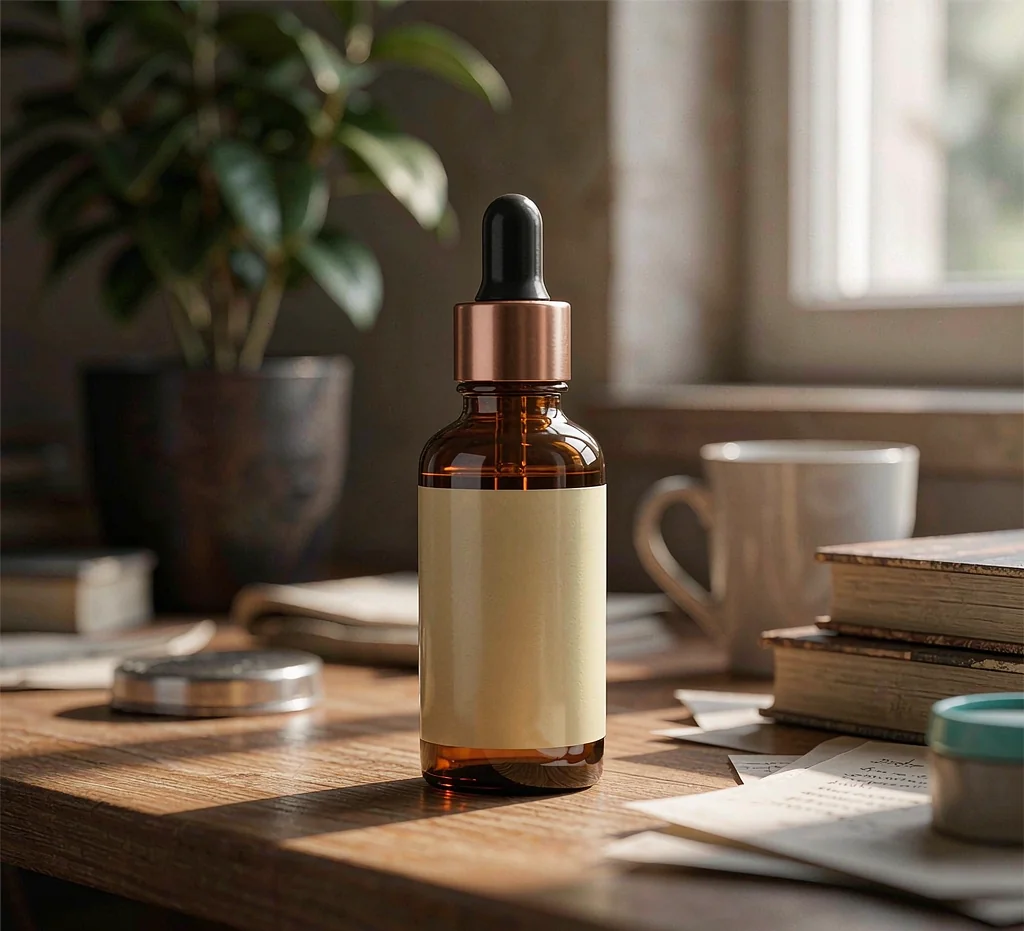
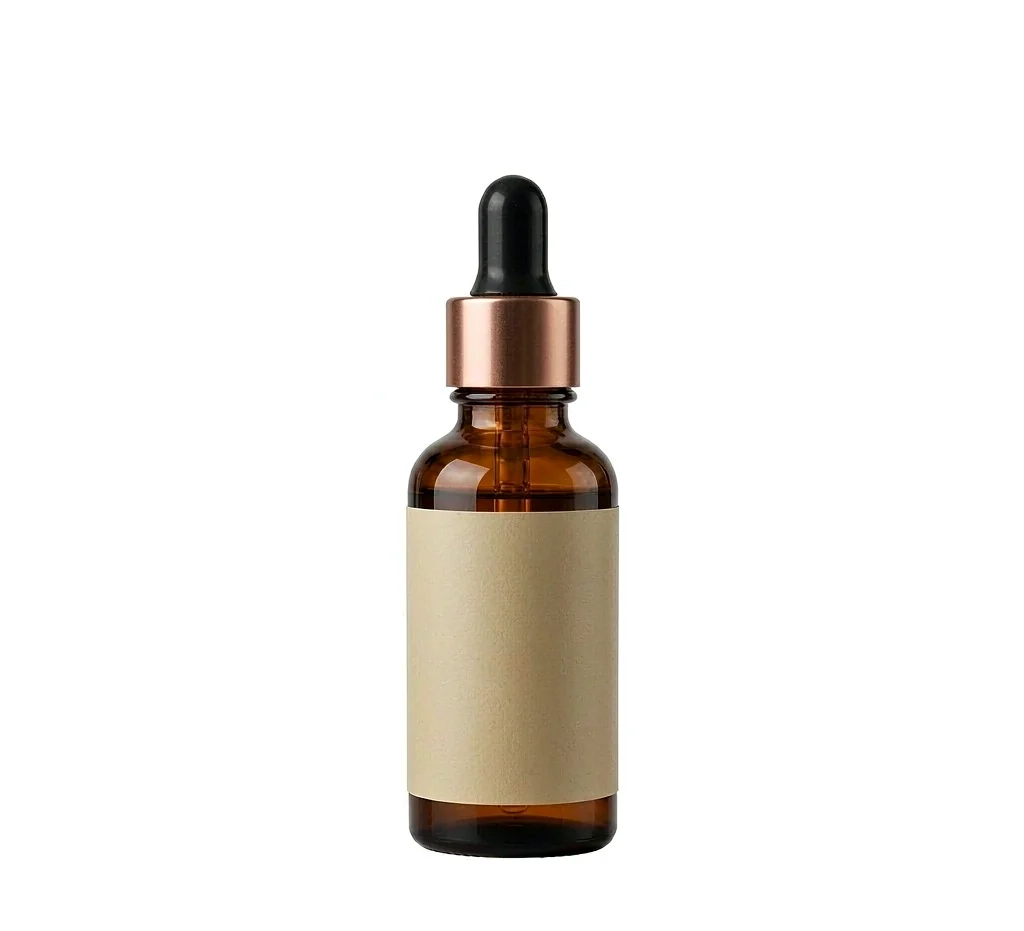
One source photo, two outcomes: the cluttered desk background is segmented away and the bottle is isolated on a compliant pure-white main-image background — same product pixels, a handled background.
What is a product photo background — and why does it decide the click?
A product photo background is everything behind the product in a listing image, and it does two jobs at once: it carries the buying context, and it decides whether the product reads clearly in a grid of search thumbnails. Shoppers compare listings in a scan, so a background that competes with the product costs clicks before a single word of your title is read.
The background explains the buying context; the product makes the sale. Keep those two jobs separate.
- Carries the buying context
- Controls thumbnail clarity
- Decides marketplace compliance
How do you remove a background from a product photo? (step by step)
Start from a source photo with clear contrast between product and setting, then let segmentation isolate the product — segmentation keeps the original pixels and changes only what surrounds them, so labels, logos, and colors stay accurate. Review the cutout at full zoom, paying attention to the label edge, the cap, and any reflective surfaces, then export pure white for the main image or a transparent PNG for design work. The before-and-after above is exactly this workflow: one cluttered desk photo in, one compliant white main image out.
Removal should subtract the background, never redraw the product.
- Shoot the source against contrast
- Segment — don't regenerate the product
- Review label, cap, and reflections at full zoom
- Export white for main, transparent for design
When is white the right product photo background — and when is it not?
White is the right background whenever the image is a main image: Amazon requires pure white (RGB 255, 255, 255) for main images, and a consistent white treatment keeps collection grids scannable on every marketplace. It is the wrong single choice for the whole gallery — supporting shots exist to show scale, material, and use context that white cannot convey, so plan one white hero plus material and lifestyle gallery images per product.
- Amazon main image: pure white required
- Shopify and Etsy: flexible, but white still scans best
- Gallery: material and lifestyle shots add context
How do you choose a background that keeps the product first?
Choose a material, not a theme: stone, paper, tile, wood, fabric, and softly colored seamless surfaces stay useful across campaigns, while a one-off themed set ages fast and steals attention. Then run the thumbnail test — shrink the image to search-result size and confirm the silhouette, label, and key details are still readable. If the product disappears at thumbnail size, the background is doing the wrong job.
If the product vanishes in a thumbnail, the background is too strong.
- Materials: stone, paper, tile, wood, fabric
- Thumbnail silhouette check
- Label legibility check
How do you generate a new background around a cutout?
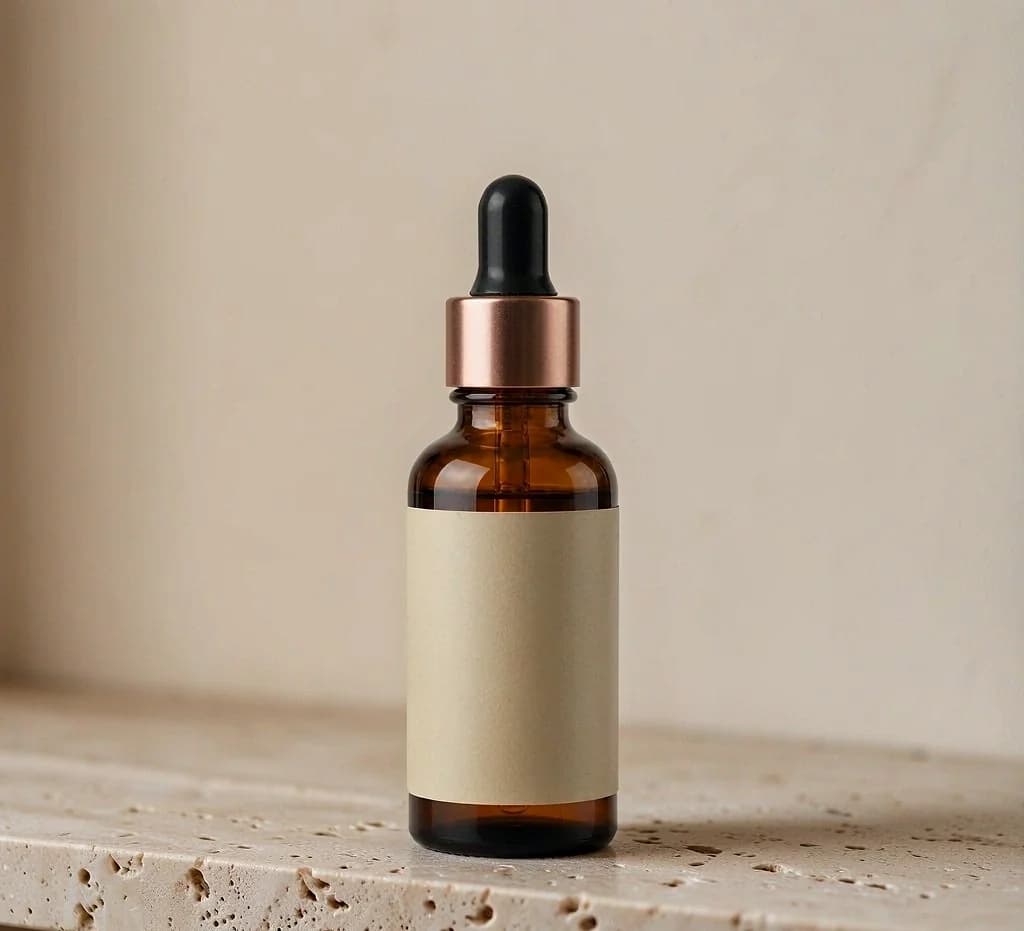
Generate a background when you need scenes a plain white shot cannot deliver — scale, use context, seasonal campaigns, or ad crops. The workflow runs segmentation first, then places the verified cutout into a generated scene with matching light direction, so the product stays a faithful copy of the source while the setting changes. The travertine-shelf scene at the top of this page was produced that way: the same bottle from the white shot, a new background, no reshoot. Generated scenes belong in the gallery and ads — never as a marketplace main image.
- Scale and use context
- Seasonal campaigns
- Ad and social crops
What does a repeatable background workflow look like?
Handle every product the same way and the whole catalog stays consistent: shoot one source photo against a plain contrast surface, cut it out with segmentation and verify the edges, export the pure-white main image, then place the same cutout on one material background for gallery use and one generated lifestyle scene for campaigns. One source photo in, a handled background per role out — that is the entire system.
- 1 source photo → verified cutout
- Pure-white main image
- Material gallery shot
- Generated lifestyle scene
Sources and further reading
Verify current marketplace rules and image standards at the official sources below.
Frequently asked questions
Common questions about Product Photo Background Ideas: Remove, Replace & Generate
What is the best background for product photos?
Pure white for the main image and a restrained material — stone, paper, tile, or soft color — for supporting shots. White keeps the main image compliant with marketplace rules; materials add buying context without competing with the product.
How do I remove the background from a product photo?
Upload the photo to a segmentation-based remover, which isolates the product and keeps its original pixels, then export on pure white for the main image or as a transparent PNG for design work. Review the edges at full zoom before exporting — missed edges are the top reason a cutout looks edited.
Can AI generate a background for my product photo?
Yes. A generated background builds a new scene — studio stone, warm shelf, sunlit counter — around an isolated cutout of your product. Use generated scenes for gallery, ad, and social images; the main image stays on pure white.
Why does Amazon require a pure white background?
Amazon requires a pure white main-image background (RGB 255, 255, 255) so search results and collection grids stay scannable and every product is shown without props or added context. Supporting gallery images can use lifestyle backgrounds.
How do I keep the product visible against its background?
Reserve contrast for the product: check that the silhouette, label, and key details stay readable at thumbnail size before approving the scene. If the product disappears in a small crop, the background is too strong.
Should every product photo use the same background?
Keep one white treatment for all main images so collection grids stay consistent, and let supporting lifestyle scenes vary by product family as long as framing and light stay consistent.
Ready for a real product?
Build the complete image pack in one workspace.
Keep exploring
Related tools, guides, and templates
Build a complete marketplace listing workflow from the pages that cover requirements, how-to, and tool comparison.
 Amazon Product Image Requirements ChecklistA production checklist for preparing clear, high-resolution Amazon listing images.
- Amazon Product Photo Editing: The Complete WorkflowEdit Amazon product photos to meet listing rules: remove backgrounds, build a white main image, resize for zoom, and check compliance before publishing.
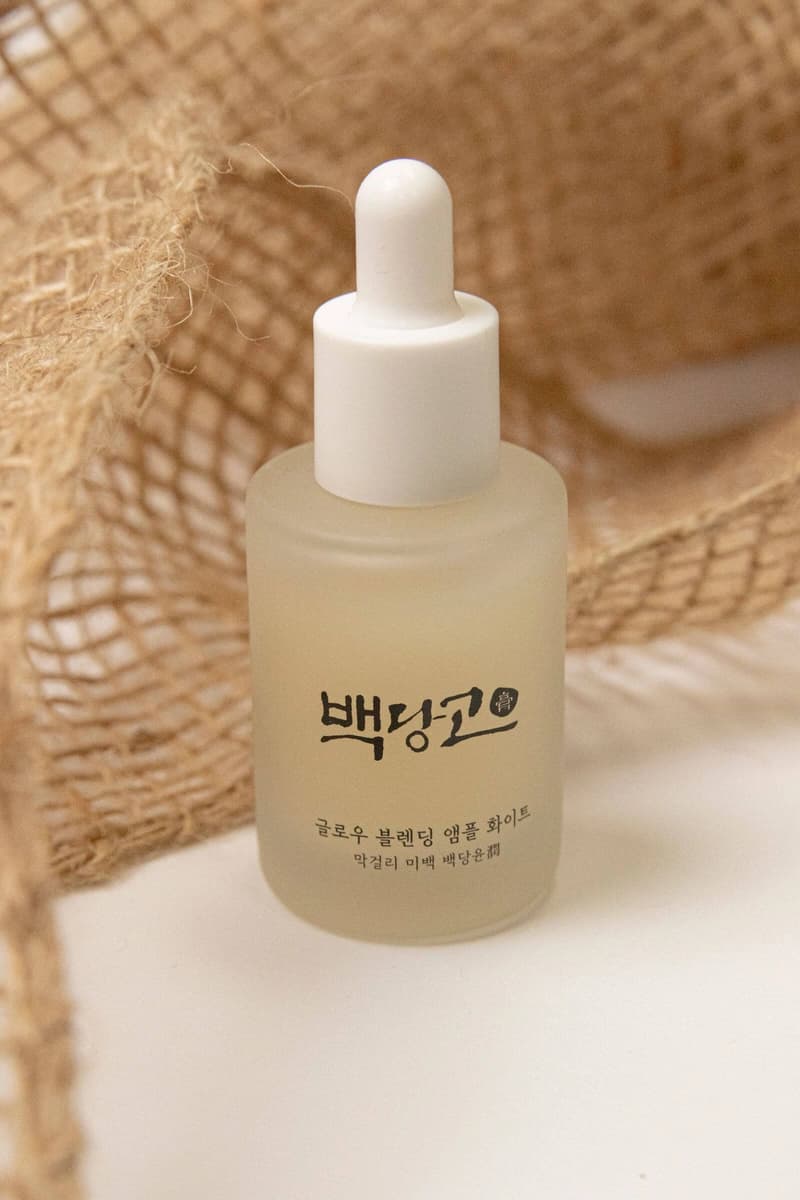 How to Take Product Photos With a PhoneA simple source-photo setup that produces cleaner AI edits and marketplace images.
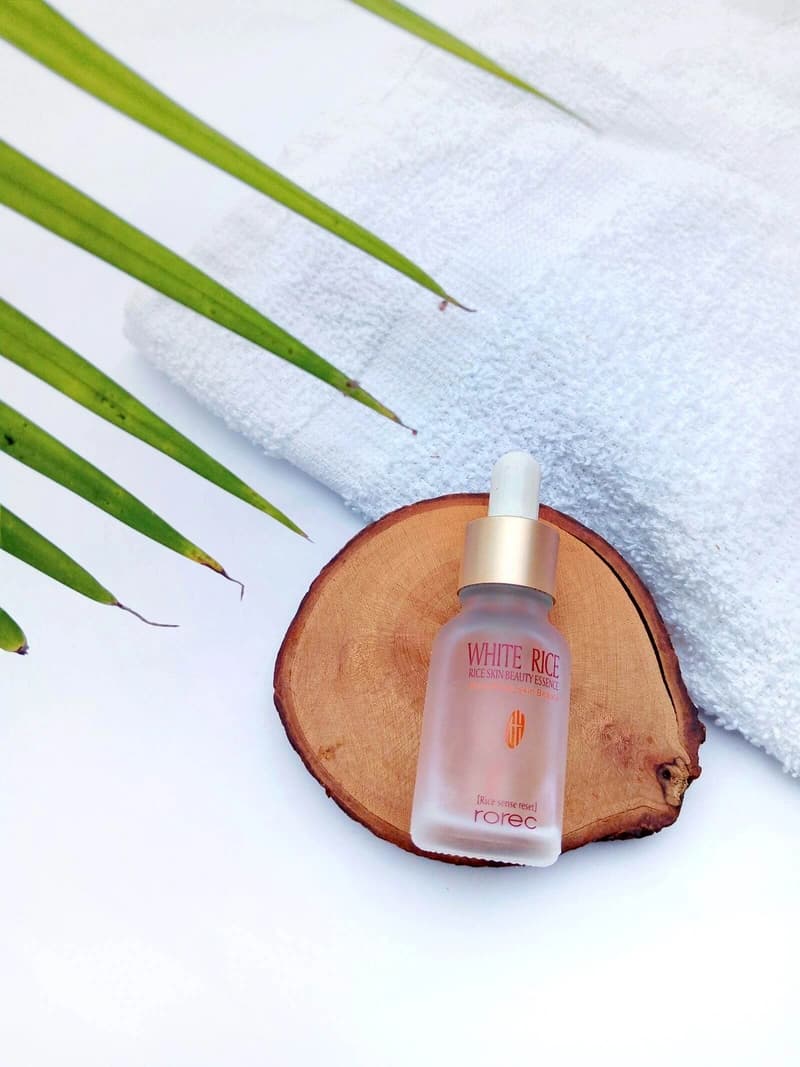 Ecommerce Product Backgrounds: Remove and GenerateChoose, remove, and generate ecommerce product backgrounds that keep the product readable in search grids and compliant with marketplace main-image rules.
- Etsy Listing Photo Size and Thumbnail GuidePrepare consistent Etsy images that stay readable in search results and listing galleries.
- Shopify Product Image Optimization ChecklistBalance visual quality, consistent dimensions, modern formats, and page performance.